Screenshots
Description
BitMEX Marketmaker Bot - User Guide
Table of Contents
- Introduction
- Installation
- Getting Started
- Wallet Connection
- Symbol Selection
- Chart Features
- Trading Settings
- Starting and Stopping the Bot
- Order Management
- Settings Templates
- Troubleshooting
- Safety and Risk Warnings
Introduction
The BitMEX Marketmaker Bot is an automated trading system designed for grid trading strategies on BitMEX cryptocurrency futures. The bot uses a market-making approach, placing buy and sell orders around the current market price to profit from price volatility.
Key Features
- Automated Grid Trading: Places buy and sell orders in a grid pattern around the current price
- Multi-Symbol Support: Monitor and trade multiple trading pairs simultaneously
- Real-Time Charting: Interactive candlestick charts with real-time price updates
- Secure Wallet System: Encrypted storage for API keys or Web3 wallet integration
- Order Management: View and manage active orders in real-time
- Settings Templates: Save and load trading configurations
- Dark Theme UI: Modern, easy-to-use PyQt5 interface
Supported Exchanges
- BitMEX (Primary)
- Additional exchanges planned for future releases
Installation
Option 1: Using the Executable (Recommended)
- Download the latest executable (
trade.exeorBitmexMarketmakerBot.exe) from the releases - Place the executable in a folder of your choice
- Double-click to run (no installation required)
Note: The first run will create a settings.json file in the same directory as the executable.
Getting Started
First Launch
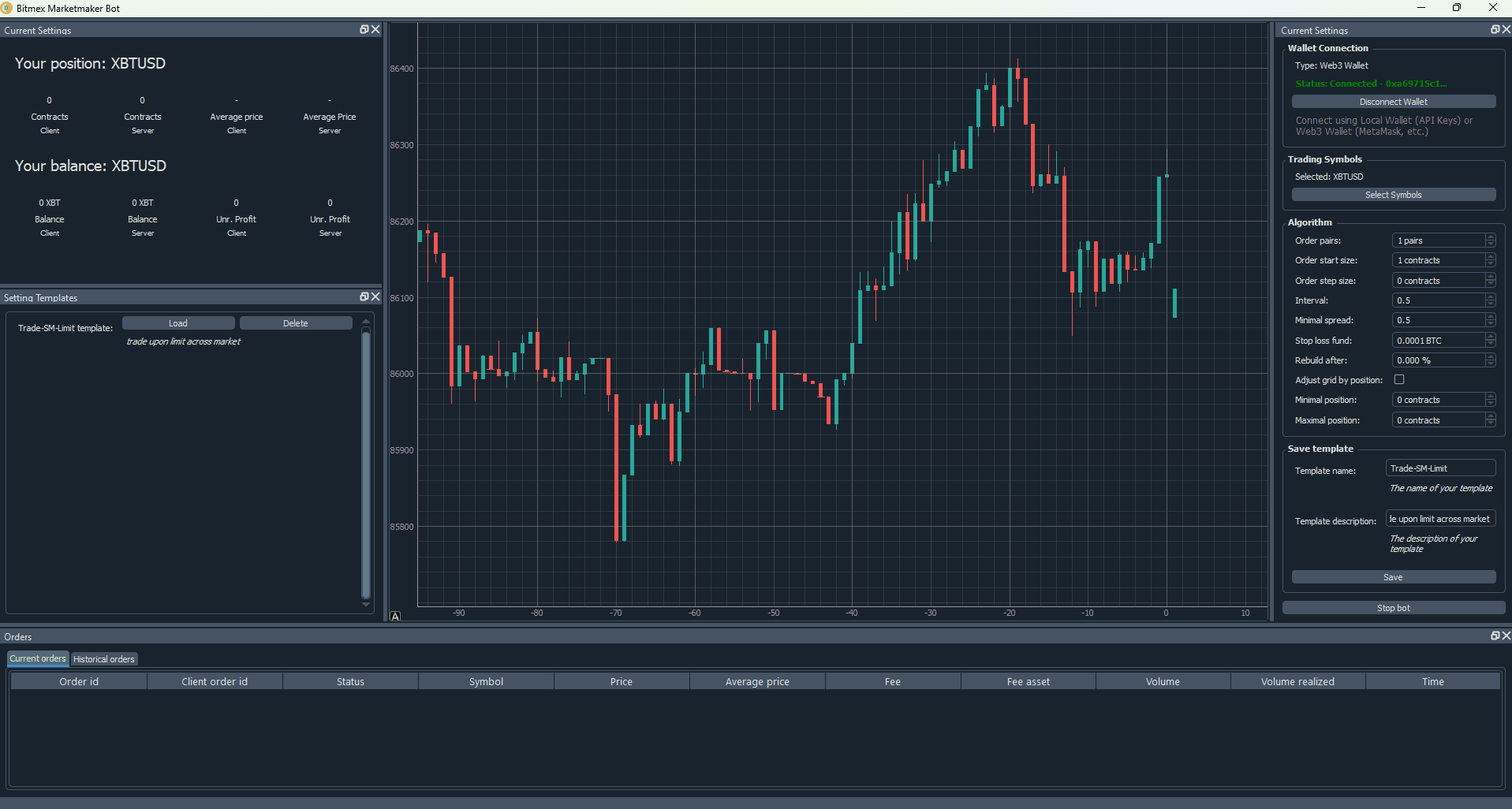
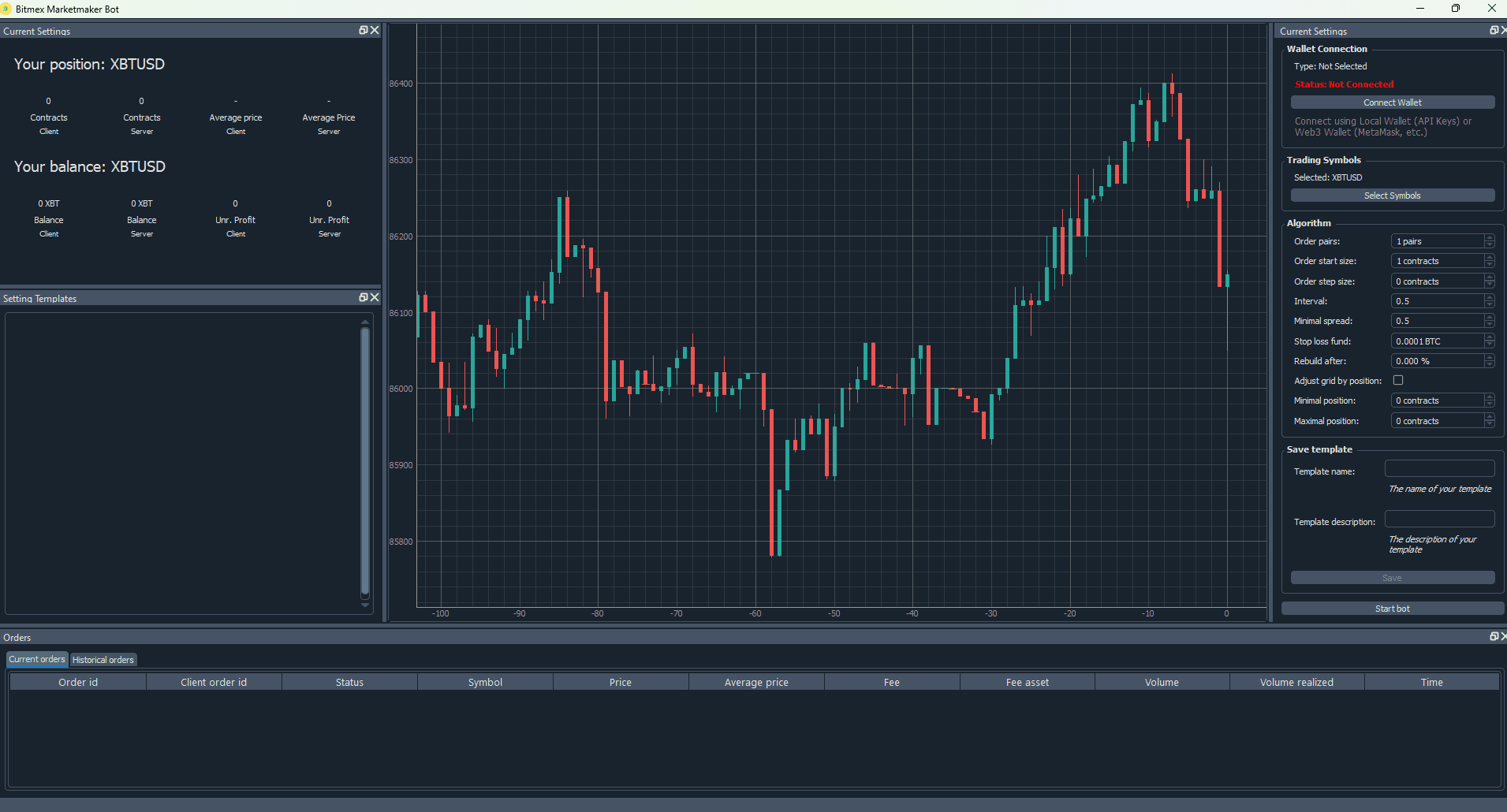
When you first launch the application, you'll see the main window with several dockable panels:
- Top Left: Chart panel (initially empty)
- Bottom Left: Settings Templates panel
- Right: Current Settings panel
- Bottom: Orders panel
Initial Setup Steps
- Connect Your Wallet (see Wallet Connection)
- Select Trading Symbols (see Symbol Selection)
- Configure Trading Settings (see Trading Settings)
- Start the Bot (see Starting and Stopping the Bot)
Wallet Connection
The application supports two types of wallet connections for accessing BitMEX:
Local Wallet (API Keys)
This is the recommended method for BitMEX trading, as BitMEX uses API keys, not cryptocurrency wallets.
Creating a New Local Wallet
- Click the "Connect Wallet" button in the Current Settings panel
- Select "Local Wallet (API Keys)"
- Choose "Create New Wallet"
- Enter a strong master password (you'll need this to unlock your wallet)
- Enter your BitMEX API Key (Public Key)
- Enter your BitMEX Secret Key (Private Key)
- Click "Create Wallet"
Important:
- Your API keys are encrypted and stored in
wallet.datin the application directory - Never share your master password or API keys
- If you lose your master password, you cannot recover your API keys
Unlocking an Existing Local Wallet
- Click "Connect Wallet"
- Select "Local Wallet (API Keys)"
- Choose "Unlock Existing Wallet"
- Enter your master password
- Click "Unlock"
Getting BitMEX API Keys
- Log in to your BitMEX account
- Go to Account → API Keys
- Click "Create API Key"
- Set appropriate permissions (read-only for testing, trading for live use)
- Copy the API Key and Secret Key
- Important: The secret key is only shown once - save it securely
Web3 Wallet (Experimental)
For users who prefer Web3 wallet integration:
- Click "Connect Wallet"
- Select "Web3 Wallet"
- Enter your wallet address
- Select the network (Ethereum, Polygon, Arbitrum, Optimism, BSC, or Avalanche)
- Optionally enter a custom RPC URL
- Click "Connect"
Note: Web3 wallet connection is primarily for address verification. For BitMEX trading, you still need API keys through the Local Wallet system.
Disconnecting Your Wallet
Click "Disconnect Wallet" to disconnect. Your encrypted keys remain stored but are no longer active in the session.
Symbol Selection
The application supports trading multiple symbols simultaneously. You can monitor and trade different trading pairs on the same chart.
Selecting Symbols
- After connecting your wallet, click "Select Symbols" in the Current Settings panel
- A dialog will appear with available BitMEX trading pairs
- Check the boxes next to the symbols you want to trade
- Click "OK" to confirm
Default Symbol
- XBTUSD is selected by default (Bitcoin perpetual swap)
Supported Symbols
Common BitMEX symbols include:
- XBTUSD: Bitcoin Perpetual Swap
- ETHUSD: Ethereum Perpetual Swap
- ADAUSD: Cardano Perpetual Swap
- And many more...
Multi-Symbol Charting
When multiple symbols are selected:
- Each symbol appears on the chart with a different color
- Real-time price updates are shown for all selected symbols
- You can compare price movements across different trading pairs
Chart Features
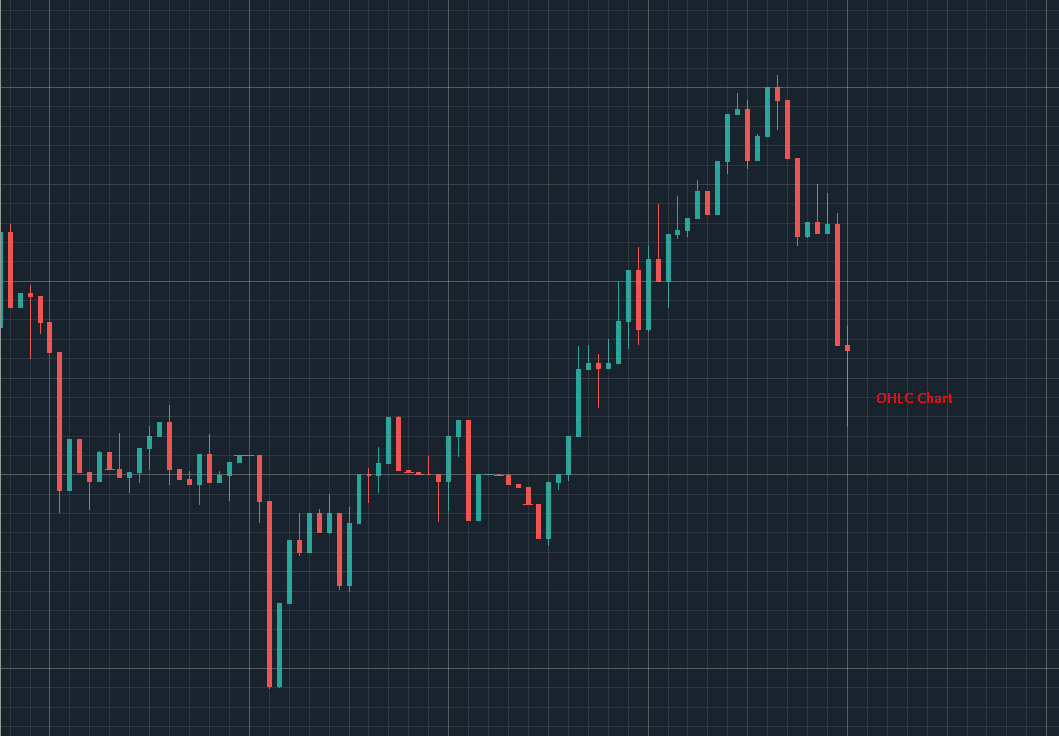
The chart panel displays candlestick charts with real-time updates.
Chart Controls
- Zoom: Scroll with mouse wheel or use zoom buttons
- Pan: Click and drag to move the chart
- Time Range: Automatically adjusts based on loaded data
Candlestick Colors
- Green/Teal: Price increased (close > open)
- Red: Price decreased (close < open)
- Multi-Symbol: Each symbol has its own color scheme
Real-Time Updates
- Kline Updates: New candles appear every minute
- Trade Updates: Real-time price and volume updates for the current candle
- Historical Data: Automatically loads when symbols are selected
Viewing Data
The chart automatically:
- Loads historical candlestick data when symbols are selected
- Updates in real-time as new trades occur
- Displays multiple symbols simultaneously with different colors
Trading Settings
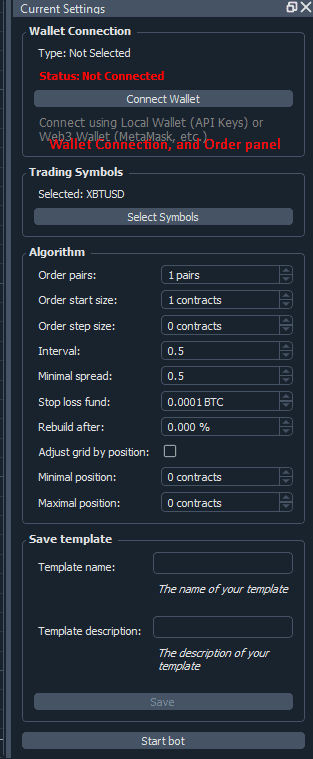
Configure your trading strategy in the Current Settings panel. The bot uses a grid trading strategy with the following parameters:
Key Settings
Orders Configuration
- Orders Pairs: Number of buy/sell order pairs to place (e.g., 5 pairs = 10 total orders)
- Orders Start Size: Initial order size in contracts
- Order Step Size: Size increment for each order level
- Interval: Time interval between grid updates (in seconds)
Risk Management
- Min Spread: Minimum price spread between buy and sell orders (prevents unprofitable trades)
- Stop Loss Fund: Maximum loss before the bot stops trading
- Rebuild After Change: Percentage price change that triggers grid rebuild
Position Management
- Adjust Grid By Position: Whether to adjust the grid based on current position
- Min Position: Minimum position size (negative for short positions)
- Max Position: Maximum position size (positive for long positions)
Setting Values
- Each setting has an input field in the Current Settings panel
- Enter your desired values
- Settings are automatically saved to
settings.json - Changes take effect when you start or restart the bot
Recommended Settings for Beginners
- Orders Pairs: 3-5
- Orders Start Size: 10-50 contracts
- Order Step Size: 5-10 contracts
- Min Spread: 0.5-1.0%
- Interval: 60 seconds
Warning: These are example values. Always test with small amounts first!
Starting and Stopping the Bot
Starting the Bot
- Ensure your wallet is connected
- Select at least one trading symbol
- Configure your trading settings
- Click the "Start Bot" button in the Current Settings panel
The bot will:
- Connect to BitMEX
- Load current market data
- Place initial grid orders
- Begin monitoring and updating orders
Stopping the Bot
- Click the "Stop Bot" button
- The bot will cancel all active orders
- Your position and balance remain unchanged
Note: There is a known issue where the "Stop Bot" button may not immediately stop grid updates. If this occurs, close the application.
Bot Status
- Running: Bot is actively trading
- Stopped: Bot is not trading
- Error: An error occurred (check the console for details)
Order Management
The Orders panel displays all active orders in real-time.
Viewing Orders
- Order ID: Unique identifier for each order
- Side: Buy or Sell
- Price: Order price level
- Size: Order size in contracts
- Status: Order status (New, Partially Filled, Filled, Canceled)
Order Actions
- Cancel Individual Order: Click the cancel button next to an order
- Cancel All Orders: Use the "Cancel All" button in the Current Settings panel
Order Updates
Orders update automatically when:
- An order is filled
- An order is canceled
- The grid is rebuilt
- Market conditions change
Settings Templates
Save and load trading configurations for quick setup.
Saving a Template
- Configure your trading settings
- Enter a template name in the Settings Templates panel
- Click the save button (usually marked with "!")
- Your settings are saved with that name
Loading a Template
- In the Settings Templates panel, find your saved template
- Click the template name button
- Settings are automatically loaded into the Current Settings panel
Managing Templates
- Templates are stored in
settings.json - You can have multiple templates for different strategies
- Templates can be deleted by removing them from
settings.json(advanced users)
Troubleshooting
Common Issues
"FileNotFoundError: settings.json"
Solution: The application will create settings.json automatically. If the error persists:
- Ensure you have write permissions in the application directory
- Check that the executable is not in a read-only location
"Connection Error" or "API Key Invalid"
Solutions:
- Verify your API keys are correct
- Check your internet connection
- Ensure your BitMEX API keys have trading permissions
- Verify you're using the correct API keys (testnet vs. mainnet)
Chart Not Showing Data
Solutions:
- Ensure at least one symbol is selected
- Check your internet connection
- Verify the wallet is connected
- Wait a few seconds for data to load
- Check the console for error messages
Bot Not Placing Orders
Solutions:
- Verify your API keys have trading permissions
- Check that you have sufficient balance
- Ensure "Min Spread" is not too large
- Verify your order sizes are within exchange limits
- Check the console for error messages
Wallet Unlock Fails
Solutions:
- Verify you're using the correct master password
- Ensure
wallet.datexists in the application directory - If the wallet file is corrupted, you may need to create a new wallet
Getting Help
- Check the console output for error messages
- Review this user guide
- Check the GitHub issues page
- Verify your settings are within reasonable ranges
Best Practices
- Start Small: Begin with minimal order sizes and positions
- Monitor Regularly: Check your bot's performance frequently
- Set Limits: Use position limits and stop loss settings
- Test Settings: Test different configurations on paper trading or with small amounts
- Keep Updated: Update to the latest version for bug fixes
- Backup Settings: Keep backups of your
settings.jsonandwallet.datfiles - Secure Storage: Store your master password and API keys securely
Recommended Testing Workflow
- Testnet: Test on BitMEX testnet first
- Small Amounts: Start with very small positions
- Monitor: Watch the bot for several hours/days
- Adjust: Fine-tune settings based on performance
- Scale: Gradually increase position sizes if results are positive
Additional Information
File Locations
When running from executable:
settings.json: Trading settings (next to executable)wallet.dat: Encrypted API keys (next to executable)
When running from source:
settings.json: Trading settings (project root)wallet.dat: Encrypted API keys (project root)
System Requirements
- OS: Windows 10/11, Linux, macOS
- RAM: 4GB minimum, 8GB recommended
- Internet: Stable connection required
- Disk Space: ~100MB for application files
Glossary
- Grid Trading: A strategy that places buy and sell orders at regular price intervals
- Market Making: Providing liquidity by placing both buy and sell orders
- Perpetual Swap: A futures contract without an expiration date
- API Key: Authentication credentials for programmatic access
- Candlestick: A chart type showing open, high, low, and close prices
- Position: Your current holdings (long = positive, short = negative)
- Spread: The difference between buy and sell prices
Version: 1.0.0 Last Updated: 2025 License: MIT
Remember: Trading cryptocurrencies involves risk. Only trade with funds you can afford to lose.