Screenshots
Description
Luxury Trading Bot - Complete User Guide
📖 Table of Contents
- Getting Started
- Application Overview
- Interface Guide
- Trading Guide
- Chart Analysis
- Portfolio Management
- Strategy System
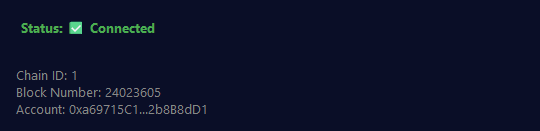
- Wallet Connection
- Settings & Configuration
- Troubleshooting
- Tips & Best Practices
🚀 Getting Started
First Launch
-
Run the Application
- Double-click
LuxuryTradingBot.exe(if using executable)
- Double-click
-
Initial Setup
- The app starts in Paper Trading Mode by default
- No API keys required for paper trading
- Virtual balance: $10,000 USDT
- Real-time market data from multiple sources (Binance, OKX, CoinGecko)
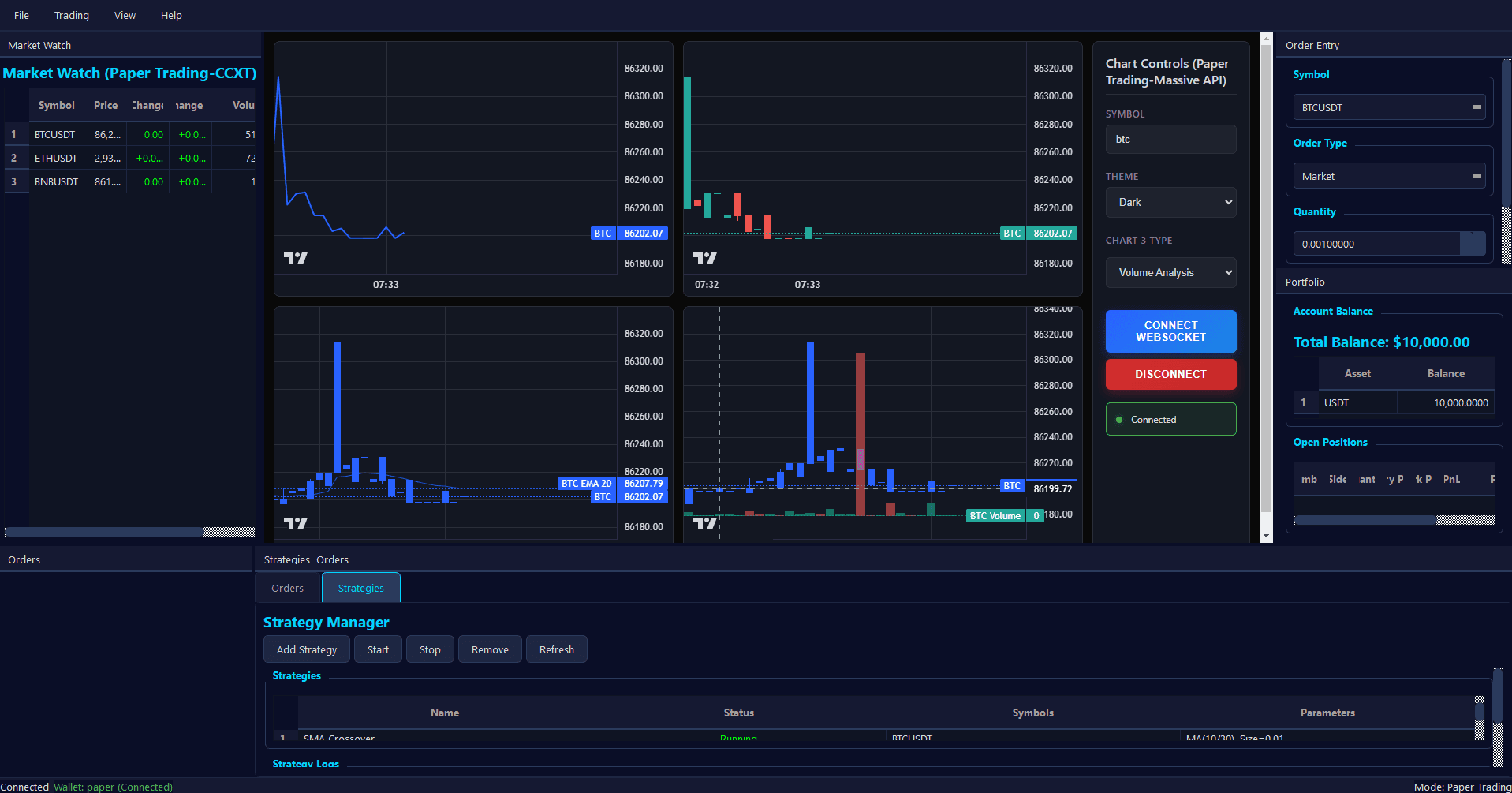
- A default SMA Crossover strategy is automatically created on startup
-
What You'll See
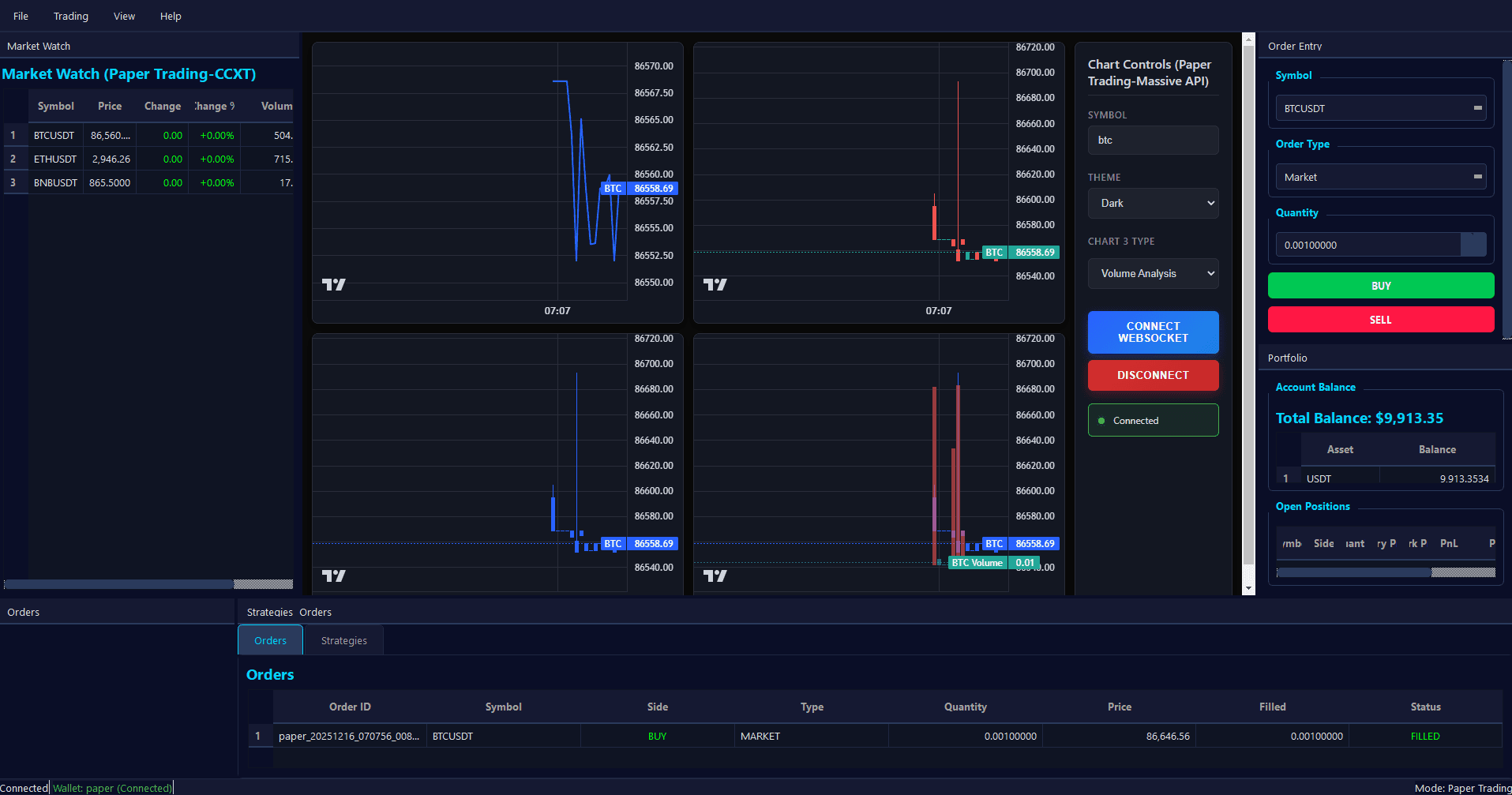
- Main window with dark luxury theme
- Market Watch panel (left side) - Real-time price updates
- Chart in the center - Interactive candlestick charts
- Order Entry panel (right side) - Place buy/sell orders
- Portfolio panel (right side) - Account balance and positions
- Orders & Strategies panel (bottom) - Manage orders and automated strategies
🖥️ Application Overview
Main Window Layout
The application uses a dockable interface where panels can be rearranged, resized, and hidden:
- Left Dock: Market Watch
- Center: Trading Chart (main view)
- Right Dock: Order Entry (top), Portfolio (bottom)
- Bottom Dock: Orders & Strategies
Key Features
- Real-Time Market Data: Live price updates via WebSocket connections
- Paper Trading: Risk-free simulated trading with virtual funds
- Live Trading: Connect to exchanges or Web3 wallets for real trading
- Automated Strategies: Create and run custom trading algorithms
- Advanced Charting: Professional candlestick charts with technical indicators
- Portfolio Tracking: Real-time balance and position monitoring
- Order Management: Market, limit, and stop orders with full tracking
📱 Interface Guide
Market Watch Panel
Location: Left side of the window
Features:
- Displays real-time prices for multiple trading pairs
- Shows price change percentage and 24h volume
- Click on any symbol to select it for trading
- Selected symbol is highlighted and displayed in the chart
- Auto-updates every second
How to Use:
- Browse available trading pairs (BTCUSDT, ETHUSDT, etc.)
- Click a symbol to select it
- The chart and order panel will update to show the selected symbol
- Price changes are color-coded (green for up, red for down)
Trading Chart
Location: Center of the window
Features:
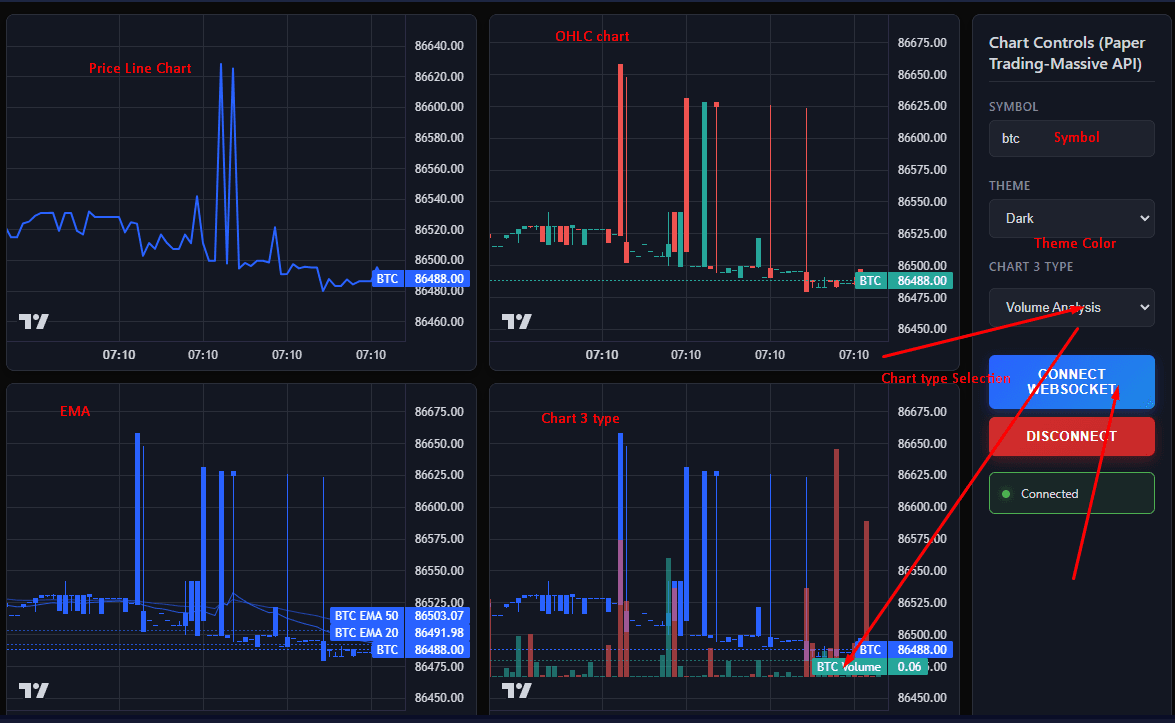
- Real-time candlestick (OHLC) charts
- Multiple chart types (Line, Area, Candlestick, OHLC bars)
- Zoom and pan functionality
- Buy/sell markers showing executed orders
- Volume indicators
How to Use:
- Select a symbol from Market Watch
- Choose timeframe from the dropdown (top-right of chart)
- Use mouse wheel to zoom in/out
- Click and drag to pan through historical data
- Chart updates in real-time as new candles form
Chart Types:
- Line Chart: Simple price line
- Area Chart: Filled price area
- Candlestick: Traditional Japanese candlesticks
- OHLC Bars: Open-High-Low-Close bars
Order Entry Panel
Location: Right side (top dock)
Features:
- Place market, limit, and stop orders
- Buy and sell buttons
- Quantity and price inputs
- Order type selection
- Real-time balance display
How to Use:
- Select symbol (auto-updates from Market Watch selection)
- Choose order type:
- Market: Execute immediately at current market price
- Limit: Execute only at specified price or better
- Stop: Trigger when price reaches stop level
- Enter quantity (amount to buy/sell)
- For limit/stop orders, enter target price
- Click BUY or SELL button
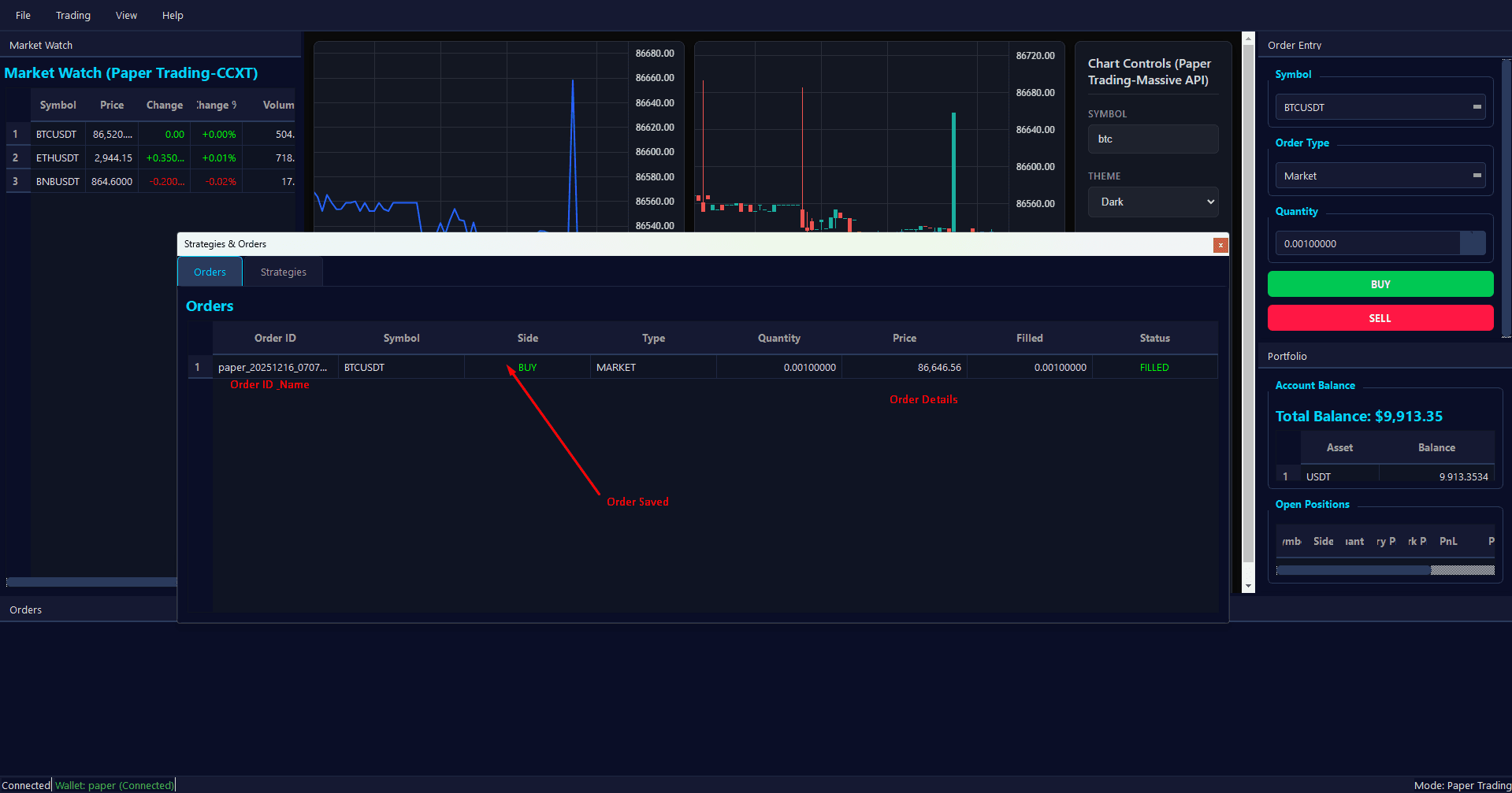
- Order appears in Orders panel below
Order Types Explained:
- Market Order: Executes immediately at the best available price
- Limit Order: Sets a maximum buy price or minimum sell price
- Stop Order: Triggers a market order when price reaches stop level
Portfolio Panel
Location: Right side (bottom dock)
Features:
- Account Balance: Total balance and per-asset breakdown
- Open Positions: Active trades with real-time PnL
- Auto-updates every second
Balance Display:
- Shows total balance in USD
- Lists all assets (USDT, BTC, ETH, etc.) with individual balances
- Updates automatically when orders execute
Positions Display:
- Symbol: Trading pair
- Side: LONG (buy) or SHORT (sell)
- Quantity: Position size
- Entry Price: Average entry price
- Mark Price: Current market price
- PnL: Unrealized profit/loss in USD
- PnL %: Percentage gain/loss
- Color-coded: Green for profit, red for loss
Orders Panel
Location: Bottom dock
Features:
- View all pending and executed orders
- Order status tracking (Pending, Filled, Cancelled, Rejected)
- Order details (type, quantity, price, time)
- Cancel pending orders
Order Status:
- Pending: Order placed, waiting for execution
- Filled: Order completed
- Partially Filled: Order partially executed
- Cancelled: Order cancelled by user
- Rejected: Order rejected by exchange/connector
How to Use:
- View all orders in the table
- Click "Cancel" button to cancel a pending order
- Monitor order execution in real-time
Strategy Manager Panel
Location: Bottom dock (Strategies tab)
Features:
- View all automated trading strategies
- Add new strategies
- Start/stop strategies
- Remove strategies
- View strategy-specific logs
How to Use:
- Add Strategy: Click "Add Strategy" button
- Enter strategy name
- Select trading symbol(s)
- Configure strategy parameters
- Click "Add" to create
- Start Strategy: Click "Start" button next to a strategy
- Stop Strategy: Click "Stop" button to pause execution
- Remove Strategy: Click "Remove" button to delete
- View Logs: Strategy logs appear in the log window below
Available Strategies:
- SMA Crossover: Simple Moving Average crossover strategy
- Parameters: Short MA period, Long MA period, Order size, Max position size
- Automatically buys when short MA crosses above long MA
- Automatically sells when short MA crosses below long MA
💹 Trading Guide
Paper Trading Mode
Default Mode: The application starts in paper trading mode.
Features:
- Virtual balance: $10,000 USDT
- Simulated order execution
- Real market data (no API keys needed)
- Risk-free learning environment
- Perfect for testing strategies
How It Works:
- Orders execute instantly at simulated prices
- Balance updates reflect virtual trades
- Positions track unrealized PnL
- All trading features work identically to live trading
Market Data Sources:
- Binance WebSocket: Real-time streaming (default)
- CCXT (OKX, etc.): Polling-based updates (1-minute intervals)
- CoinGecko: Free API for price data
Live Trading Mode
Exchange Trading:
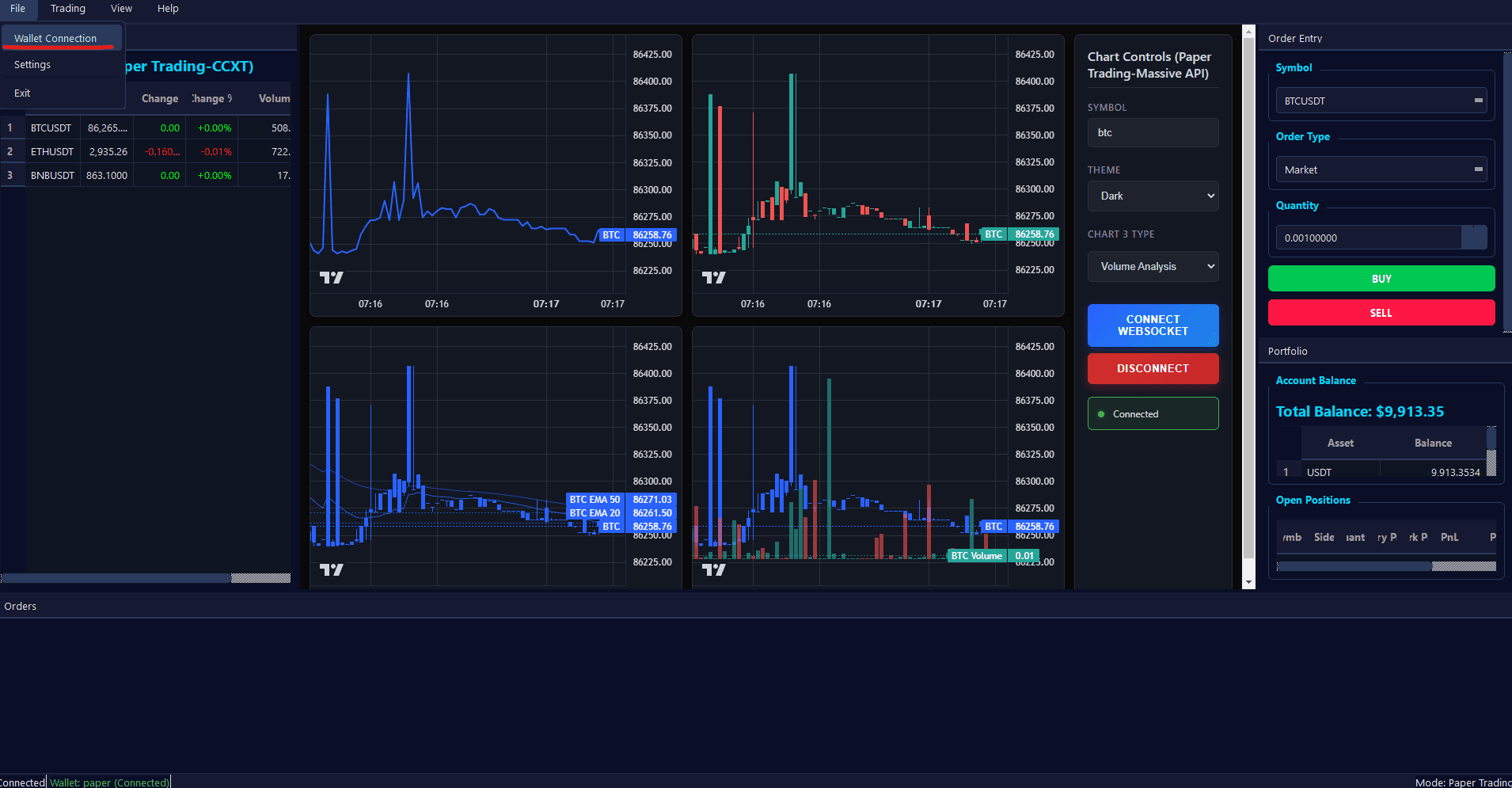
- Go to File → Settings → Wallet Connection
- Select "Exchange API Keys" tab
- Choose your exchange (Binance, etc.)
- Enter API Key and Secret
- Keys are encrypted and stored locally
- Switch to live trading mode
Web3 Wallet Trading:
- Go to File → Settings → Wallet Connection
- Select "Web3 Wallet" tab
- Choose wallet type (MetaMask, WalletConnect, etc.)
- Enter RPC URL or use default
- Click "Connect"
- Wallet balance will appear in Portfolio panel
- All orders and strategies will use the connected wallet
Important Notes:
- Live trading uses real funds - trade carefully!
- Always test strategies in paper trading first
- Start with small position sizes
- Monitor your positions regularly
Order Execution Flow
- Place Order: Enter details in Order Entry panel
- Order Submitted: Appears in Orders panel as "Pending"
- Order Execution:
- Market orders: Execute immediately
- Limit orders: Execute when price reaches limit
- Stop orders: Trigger when stop price is hit
- Order Filled: Status changes to "Filled"
- Balance Update: Portfolio panel updates automatically
- Position Created: If opening a new position, it appears in Portfolio
📊 Chart Analysis
Reading Candlestick Charts
Candlestick Components:
- Body: Open to Close price range
- Wick/Shadow: High and Low price extremes
- Green/White: Close > Open (bullish)
- Red/Black: Close < Open (bearish)
Common Patterns:
- Doji: Open ≈ Close (indecision)
- Hammer: Long lower wick (potential reversal)
- Engulfing: Large candle engulfs previous (trend change)
Chart Navigation
- Zoom In: Mouse wheel up or pinch gesture
- Zoom Out: Mouse wheel down
- Pan: Click and drag horizontally
- Reset View: Double-click chart or use reset button
💼 Portfolio Management
Understanding Your Balance
Total Balance: Sum of all asset values in USD
Asset Breakdown:
- Individual balances for each asset (USDT, BTC, ETH, etc.)
- Values update in real-time
- Reflects both available and locked funds
Managing Positions
Opening a Position:
- Place a buy order (LONG) or sell order (SHORT)
- Order executes
- Position appears in Portfolio panel
- Monitor PnL in real-time
Closing a Position:
- Place opposite order (sell for LONG, buy for SHORT)
- Position closes when order fills
- Realized PnL is calculated
- Position disappears from list
Position Metrics:
- Entry Price: Average price when position opened
- Mark Price: Current market price
- Unrealized PnL: Profit/loss if closed now
- PnL %: Percentage gain/loss
Risk Management
Best Practices:
- Never risk more than you can afford to lose
- Use stop-loss orders to limit losses
- Diversify across multiple symbols
- Set maximum position sizes
- Monitor leverage (if using margin trading)
🤖 Strategy System
What Are Strategies?
Strategies are automated trading algorithms that:
- Monitor market conditions
- Generate buy/sell signals
- Execute orders automatically
- Run continuously in the background
Creating a Strategy
- Click "Add Strategy" in Strategy Manager panel
- Configure Strategy:
- Name: Give your strategy a unique name
- Enabled: Check to start immediately
- Symbol: Select trading pair(s)
- Parameters: Configure strategy-specific settings
- Click "Add" to create
- Strategy appears in the list
- Click "Start" to begin execution (if not auto-enabled)
Strategy Configuration
SMA Crossover Strategy Parameters:
- Short MA Period: Fast moving average period (default: 10)
- Long MA Period: Slow moving average period (default: 30)
- Order Size: Amount to trade per signal (default: 0.01)
- Use Limit Orders: Use limit orders instead of market orders
- Price Offset: Percentage offset for limit orders (default: 0.1%)
- Max Position Size: Maximum position size per symbol (default: 0.1)
How SMA Crossover Works:
- Calculates two moving averages (short and long)
- Buy Signal: When short MA crosses above long MA
- Sell Signal: When short MA crosses below long MA
- Places orders automatically based on signals
- Manages position sizes and prevents over-trading
Managing Strategies
Start Strategy:
- Click "Start" button
- Strategy begins monitoring and trading
- Logs appear in strategy log window
Stop Strategy:
- Click "Stop" button
- Strategy pauses (does not close positions)
- Can be restarted later
Remove Strategy:
- Click "Remove" button
- Strategy is deleted permanently
- Open positions remain (close manually if needed)
Strategy Logs:
- View strategy activity in log window
- Shows signals, orders, and errors
- Helps debug strategy behavior
Strategy Best Practices
- Test First: Always test in paper trading mode
- Start Small: Use small order sizes initially
- Monitor Closely: Watch strategy logs and performance
- Set Limits: Configure max position sizes
- Multiple Symbols: Strategies can trade multiple symbols simultaneously
- Stop When Needed: Don't hesitate to stop underperforming strategies
🔗 Wallet Connection
Connecting Web3 Wallets
Supported Wallets:
- MetaMask
- WalletConnect
- Other EVM-compatible wallets
Supported Networks:
- Ethereum Mainnet
- Binance Smart Chain (BSC)
- Polygon
- Avalanche
- Fantom
- Arbitrum
- Optimism
How to Connect:
- Go to File → Settings → Wallet Connection
- Select "Web3 Wallet" tab
- Choose wallet type
- Enter RPC URL (or use default for selected network)
- Click "Connect"
- Wait for connection confirmation
- Wallet balance appears in Portfolio panel
After Connection:
- Portfolio shows wallet balance (not paper trading balance)
- All orders execute through connected wallet
- Strategies use wallet balance for trading
- Balance updates automatically
Disconnecting:
- Click "Disconnect" in Wallet Connection dialog
- Application returns to paper trading mode
- Wallet balance no longer displayed
Exchange API Keys
Supported Exchanges:
- Binance
- Other exchanges via CCXT
How to Connect:
- Go to File → Settings → Wallet Connection
- Select "Exchange API Keys" tab
- Choose exchange
- Enter API Key and Secret
- Keys are encrypted and stored locally
- Click "Save"
Security Notes:
- API keys are encrypted before storage
- Never share your API keys
- Use read-only keys if possible
- Revoke keys if compromised
Order Execution Errors
Problem: Orders not executing
- Solution: Check sufficient balance
- Solution: Verify order parameters (price, quantity)
- Solution: In paper trading, orders should execute instantly
- Solution: Check strategy logs for error messages
Problem: "Insufficient balance" error
- Solution: Check Portfolio panel for available balance
- Solution: Close some positions to free up funds
- Solution: Reduce order size
Strategy Issues
Problem: Strategy not placing orders
- Solution: Check strategy is started (green status)
- Solution: Review strategy logs for errors
- Solution: Verify strategy parameters are correct
- Solution: Ensure sufficient balance
Problem: Strategy placing too many orders
- Solution: Reduce order size parameter
- Solution: Set max position size limit
- Solution: Stop strategy and review logic
Wallet Connection Issues
Problem: Cannot connect to wallet
- Solution: Verify RPC URL is correct
- Solution: Check network connectivity
- Solution: Try a different RPC endpoint
- Solution: Ensure wallet is unlocked
Problem: Balance not showing
- Solution: Wait a few seconds for balance to load
- Solution: Check wallet connection status
- Solution: Verify RPC endpoint is working
- Solution: Try reconnecting wallet
Performance Issues
Problem: Application is slow
- Solution: Close unnecessary strategies
- Solution: Reduce number of symbols in Market Watch
- Solution: Restart the application
- Solution: Check system resources (CPU, RAM)
💡 Tips & Best Practices
Trading Tips
-
Start with Paper Trading
- Learn the interface risk-free
- Test strategies before using real money
- Understand order types and execution
-
Use Stop-Loss Orders
- Always set stop-loss levels
- Limit potential losses
- Protect your capital
-
Diversify
- Don't put all funds in one symbol
- Spread risk across multiple positions
- Use position size limits
-
Monitor Regularly
- Check positions frequently
- Review strategy performance
- Adjust parameters as needed
-
Keep Records
- Track your trades
- Analyze what works
- Learn from mistakes
Strategy Development
-
Test Thoroughly
- Backtest strategies if possible
- Paper trade before going live
- Start with small position sizes
-
Understand Parameters
- Know what each parameter does
- Start with default values
- Adjust gradually
-
Monitor Performance
- Watch strategy logs
- Track win rate and PnL
- Stop underperforming strategies
-
Risk Management
- Set max position sizes
- Use multiple strategies
- Don't over-leverage
General Best Practices
-
Keep Software Updated
- Use latest version
- Check for bug fixes
- Report issues you find
-
Secure Your Keys
- Never share API keys
- Use encrypted storage
- Revoke compromised keys
-
Backup Important Data
- Export strategy configurations
- Save trade history
- Keep records of settings
-
Stay Informed
- Monitor market conditions
- Understand what you're trading
- Follow risk management rules
-
Start Small
- Begin with small positions
- Gradually increase as you learn
- Never risk more than you can lose
📝 Additional Notes
Paper Trading vs Live Trading
Paper Trading:
- Virtual funds ($10,000 USDT)
- Instant execution
- No real risk
- Perfect for learning
Live Trading:
- Real funds
- Real execution delays
- Real risk
- Requires careful management
Market Data Sources
Binance WebSocket (Default):
- Real-time streaming
- Low latency
- Requires internet connection
CCXT (OKX, Coinbase, etc.):
- Polling-based (1-minute updates)
- More reliable in restricted regions
- Slightly delayed updates
CoinGecko:
- Free API
- No API key required
- Good for price data
Order Types Summary
- Market: Fast execution, variable price
- Limit: Price control, may not execute
- Stop: Risk management, triggers at price level
Strategy Types
- Trend Following: Follows market trends (e.g., SMA Crossover)
- Mean Reversion: Trades price reversals
- Breakout: Enters on price breakouts
- Grid Trading: Places orders at price levels
- DCA: Dollar-cost averaging
🆘 Getting Help
Common Resources
- README.md: Technical documentation
- This Guide: User manual
- Application Logs: Check for error messages (if enabled)
- Strategy Logs: View in Strategy Manager panel
Reporting Issues
When reporting problems, include:
- Application version
- Operating system
- Steps to reproduce
- Error messages (if any)
- Screenshots (if helpful)
Last Updated: 2024