Screenshots
Description
VedicaTrader FFC WOP - User Guide
Table of Contents
- Getting Started
- Application Overview
- Workspace Management
- Stock Charts
- Trading Tools
- Watchlists
- Settings & Configuration
- Tips & Shortcuts
- Troubleshooting
Getting Started
First Launch
- Launch the application.
- On first run, you may see a loading screen while data downloads.
- The main workspace opens with a default tab.
Connection Status
- Check the connection indicator (top-right).
- Green "Connected" = real-time data active.
- Red "Disconnected" = check your internet connection.
Application Overview
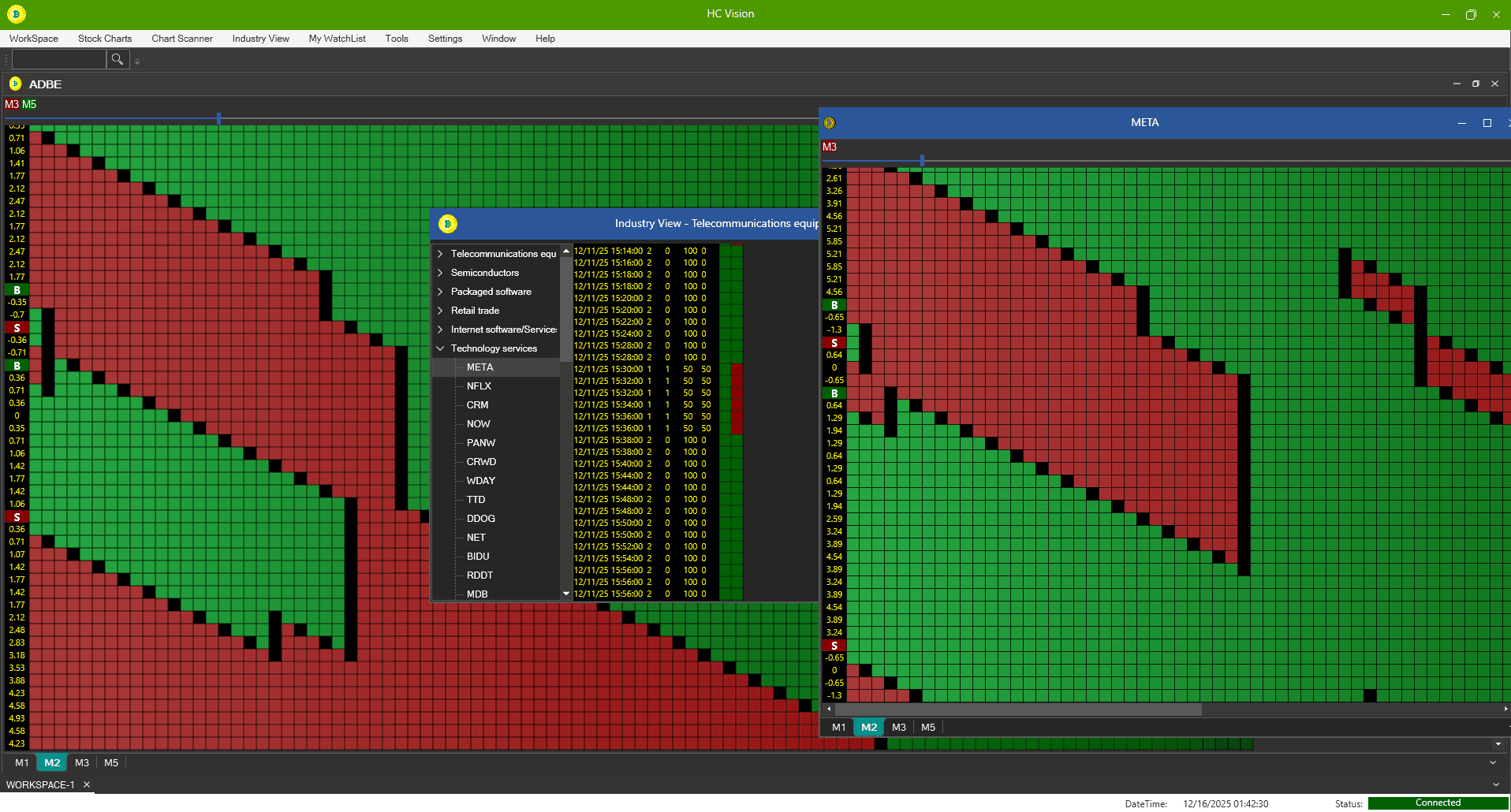
Main Interface Components
- Menu Bar: Access all features and tools
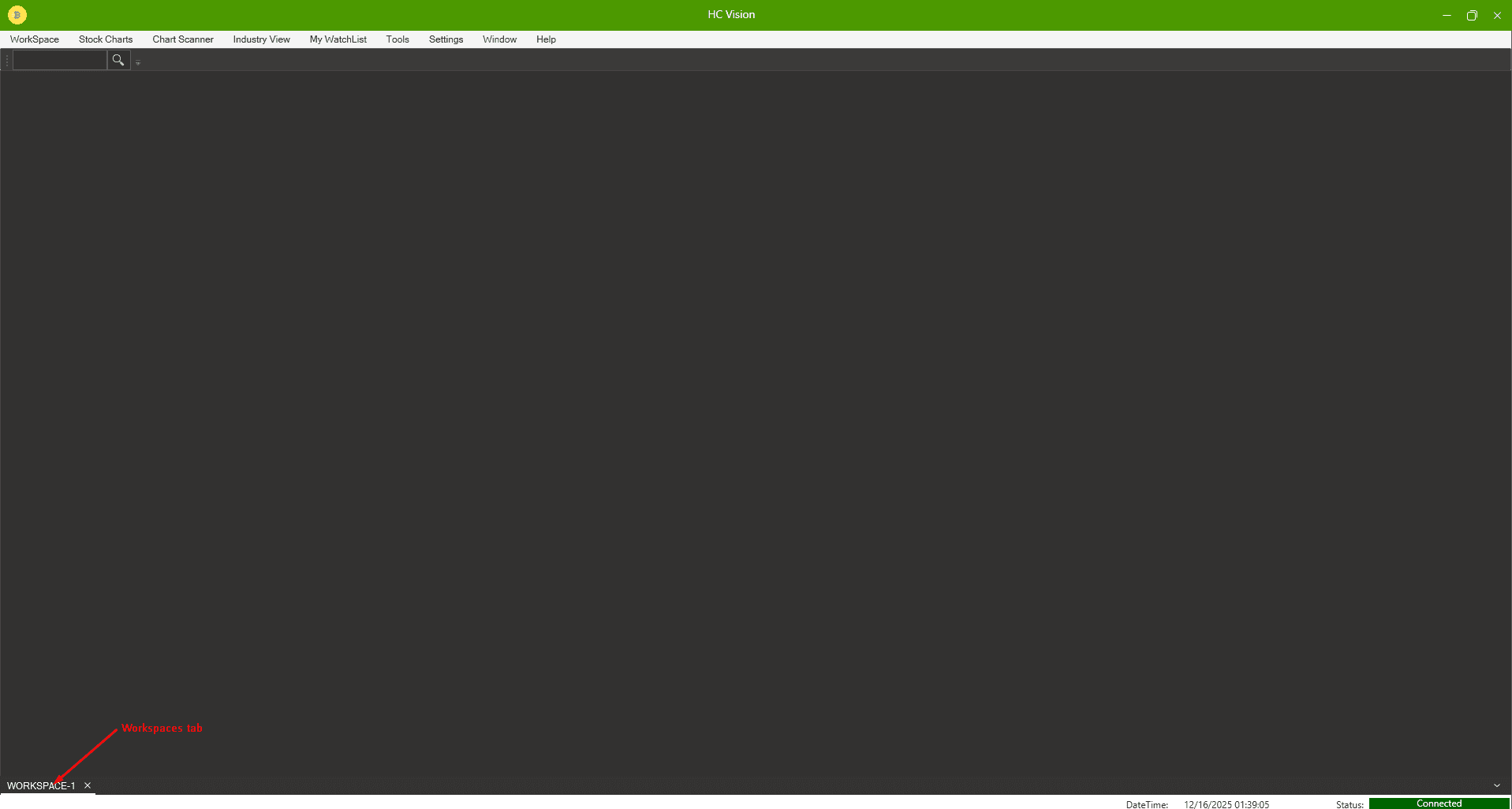
- Tab Bar: Switch between different workspaces
- Symbol Search Box: Quick symbol lookup
- Chart Area: Displays trading charts
- Status Bar: Shows date/time and connection status
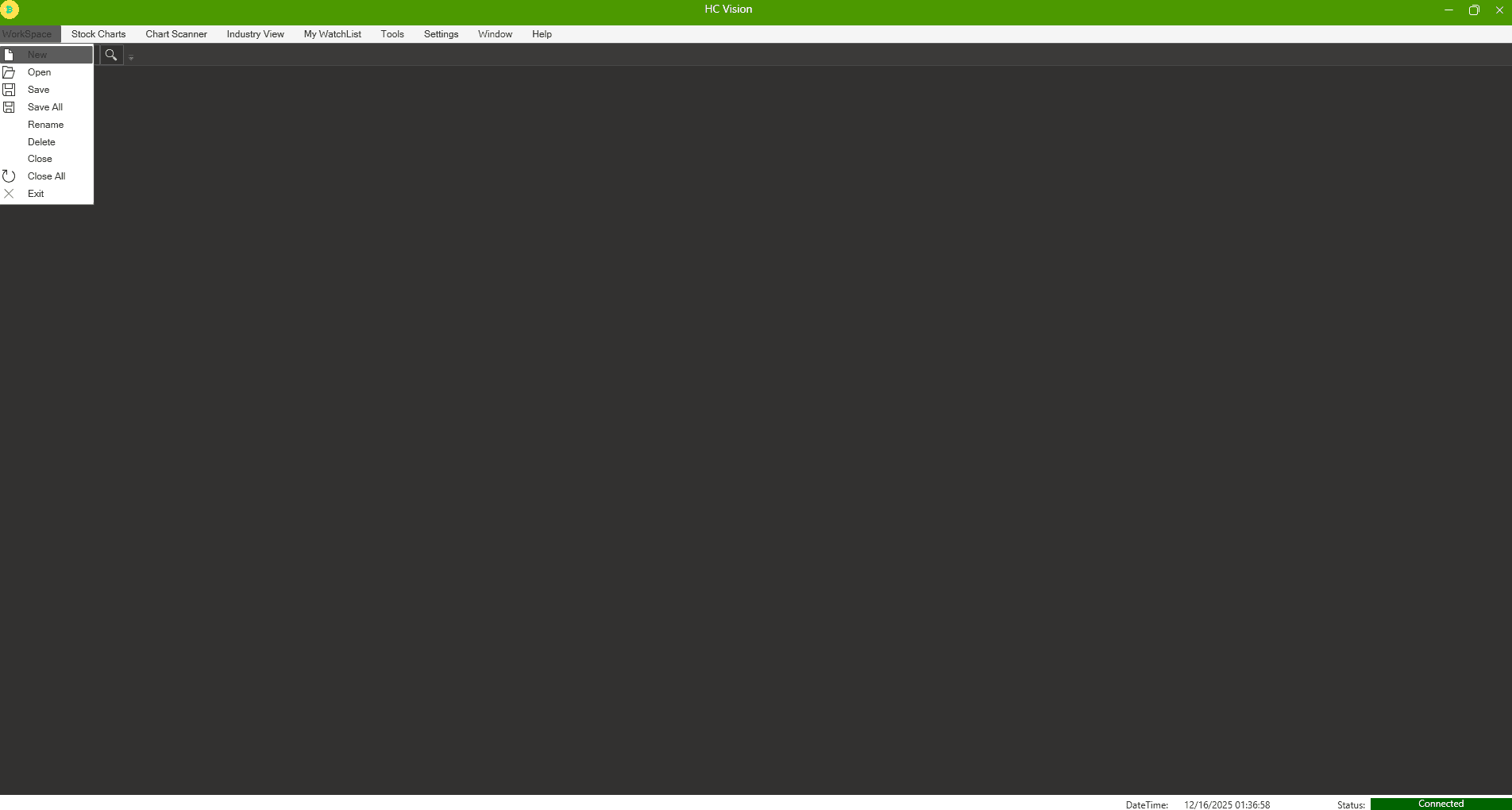
Menu Structure
- WorkSpace: Workspace management operations
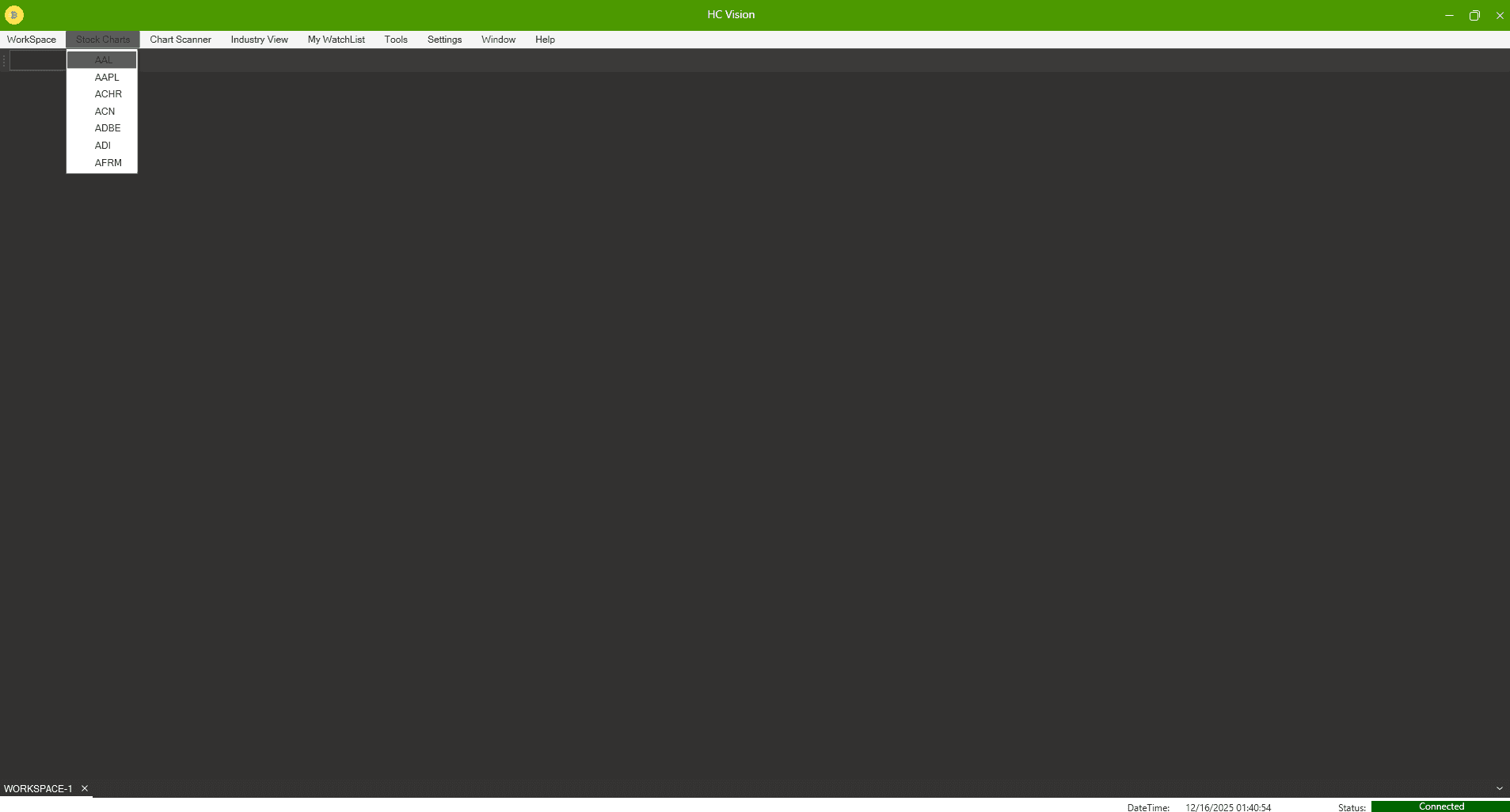
- Stock Charts: Quick access to stock symbols
- Chart Scanner: Scan multiple stocks for signals
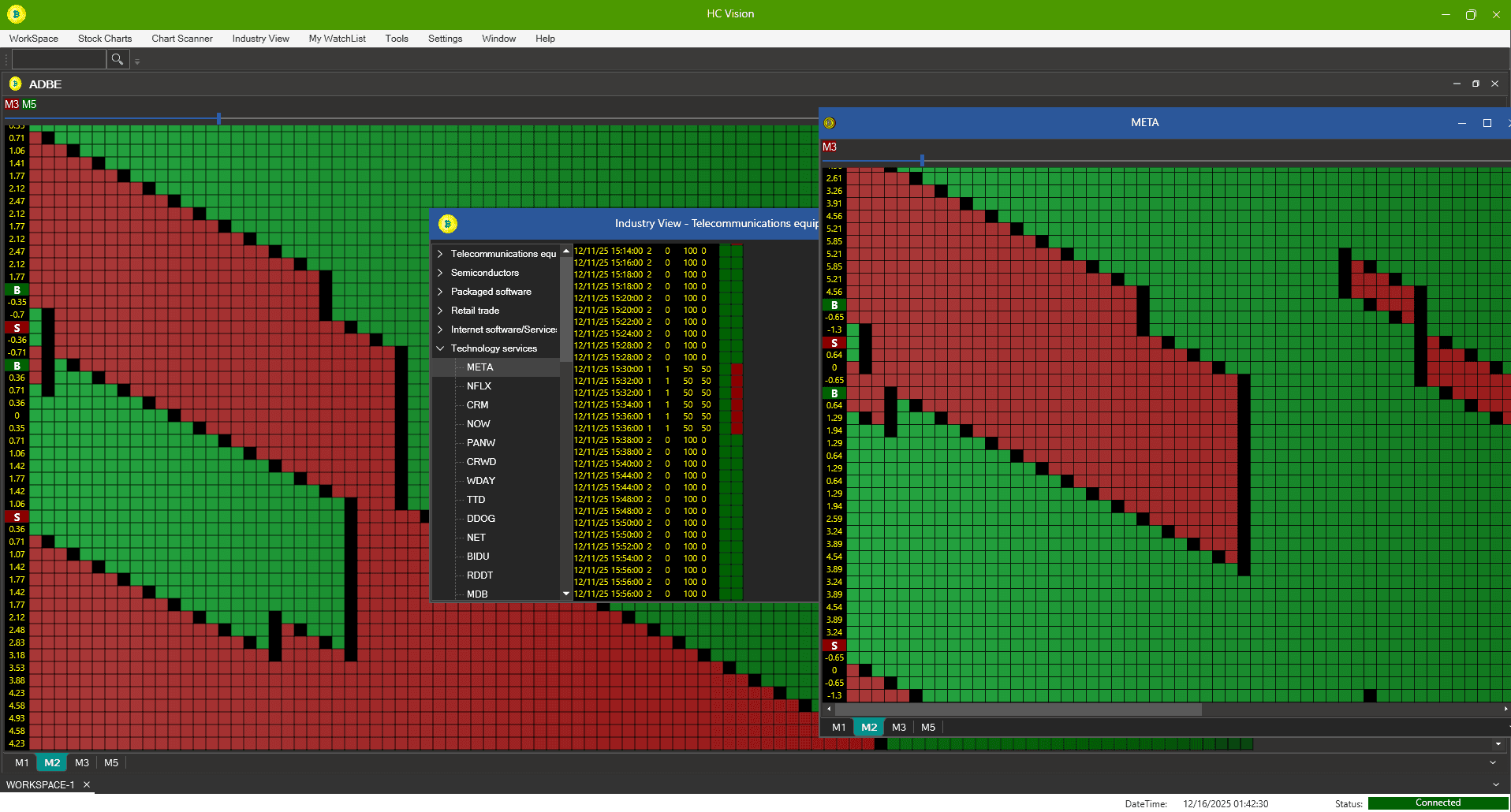
- Industry View: Sector and industry analysis
- My WatchList: Manage your watchlists
- Tools: Trading tools and utilities
- Settings: Application configuration
- Window: Window layout options
- Help: Support and information
Workspace Management
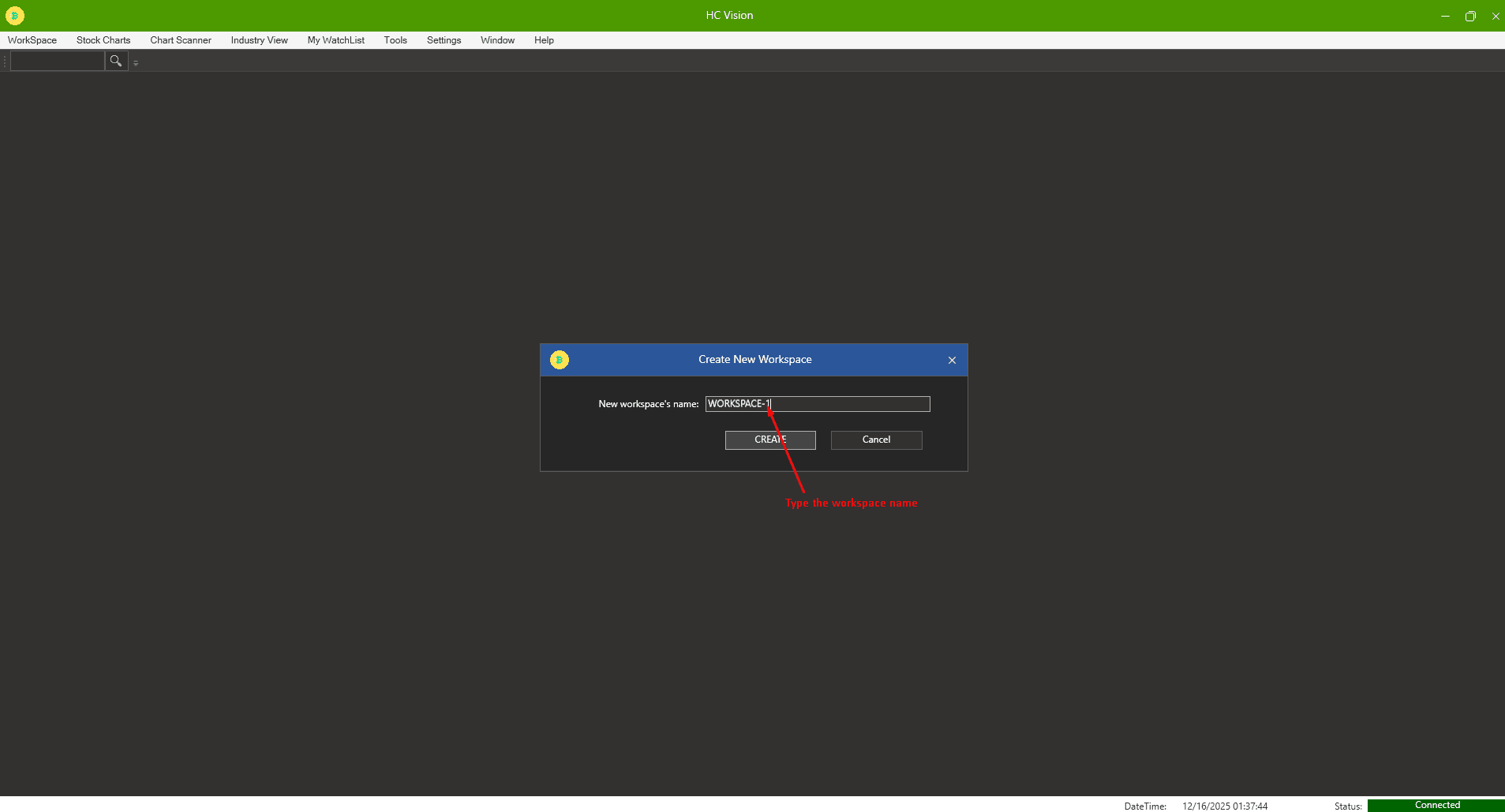
Creating a New Workspace
- Go to WorkSpace → New
- Enter a workspace name
- Click OK
- A new tab appears with an empty workspace
Opening a Saved Workspace
- Go to WorkSpace → Open
- Select a workspace from the list
- Click OK
- The workspace opens in a new tab
Saving Workspaces
- Save current workspace: WorkSpace → Save
- Save all workspaces: WorkSpace → Save All
- Workspaces auto-save on exit
Managing Workspaces
- Rename: WorkSpace → Rename
- Delete: WorkSpace → Delete
- Close: WorkSpace → Close
- Close All: WorkSpace → Close All
- Maximum: 5 workspaces open at once
Workspace Layouts
- Cascade: Window → Cascade
- Horizontal: Window → Horizontal
- Vertical: Window → Vertical
Stock Charts
Opening Stock Charts
Method 1: Menu Selection
- Go to Stock Charts
- Select a stock (e.g., AAPL, MSFT)
- Chart opens in the active workspace
Method 2: Symbol Search
- Use the search box at the top
- Type a symbol (e.g., "AAPL" or "AAPL,MSFT,TSLA")
- Press Enter or click Search
- Charts open in the current workspace
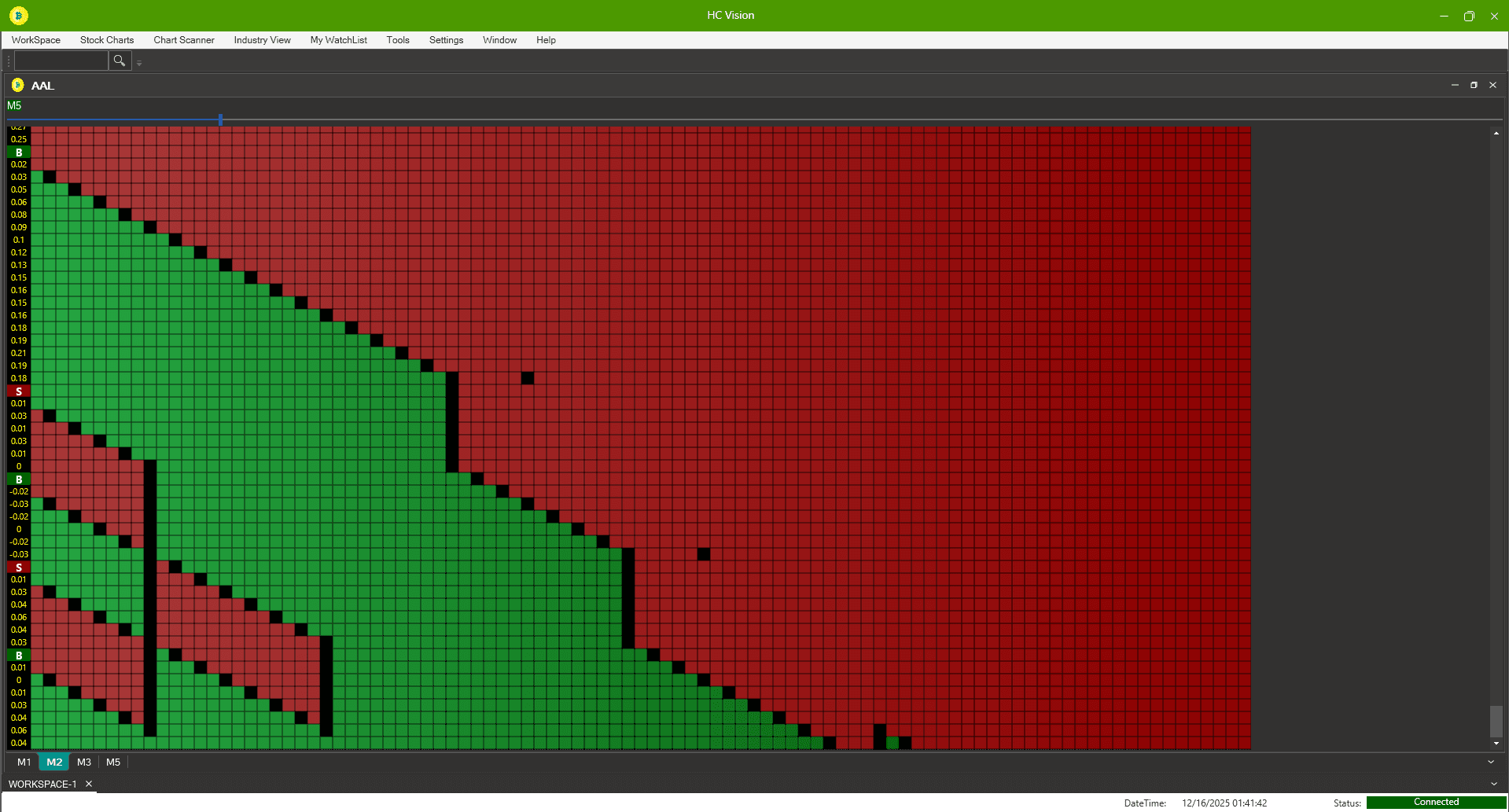
Chart Features
- Multiple Timeframes: M1, M2, M3, M5, M10, M15, M20, M30, H1, H2, H4, D
- Real-time Updates: Automatic updates via Pusher
- Signal Indicators: BUY/SELL signals displayed
- Chart Settings: Customize appearance and indicators
Chart Controls
- Zoom: Use zoom controls (if enabled)
- Scroll: Navigate historical data
- Resize: Drag chart borders
- Move: Drag chart headers
Chart Limits
- Maximum 12 charts per workspace
- Charts are organized within workspaces
Trading Tools
Latest Signals Browser
- Location: Tools → Latest Signals Browser
- Features:
- Shows recent BUY/SELL signals
- Filter by timeframe and signal type
- Click a signal to view the chart
Chart Scanner
- Location: Chart Scanner → Chart Scanner
- Features:
- Scans multiple stocks for signals
- Grid view of charts
- Settings: Chart Scanner → Chart Scanner Settings
- Grid size
- Timeframe
- Signal filters
- Custom stock lists
Chart Browser
- Location: Tools → Chart Browser
- Features:
- Browse all available stocks
- Search and filter
- Quick chart access
Signals Grid View
- Location: Tools → Signals GridView
- Features:
- Grid of all signals across timeframes
- Sort and filter options
- Settings: Tools → Signals GridView Settings
Industry View
- Location: Industry View → Industry View
- Features:
- Sector and industry analysis
- Aggregated signals by industry
- Settings: Industry View → Industry View Settings
Sector & Industry Reports
- Location: Tools → Sec Ind Report
- Features:
- Industry Grid: Industry-level statistics
- Sector Grid: Sector-level statistics
- Shows total stocks, buy/sell counts, percentages
Market View Reports
- Location: Tools → MarketView Report
- Available Reports:
- NQ100-WEIGHTED
- SP500-WEIGHTED
- DOW-WEIGHTED
- Features: Market-wide analysis and trends
Economic Calendar
- Location: Tools → Economic Calendar
- Features:
- Economic events and announcements
- Filter by date and importance
- Impact on markets
Earnings Calendar
- Location: Tools → Earning Calendar
- Features:
- Upcoming earnings announcements
- Filter by date and company
- Plan trades around earnings
Watchlists
Creating a Watchlist
- Go to My WatchList → Create New List
- Enter a name
- Add symbols (comma-separated or one per line)
- Click Save
Managing Watchlists
- Go to My WatchList → Manage My WatchLists
- View all watchlists
- Edit, delete, or open watchlists
- Add/remove symbols
Using Watchlists
- Quick access to favorite stocks
- Monitor multiple symbols
- Create multiple lists for different strategies
Settings & Configuration
Chart Settings
- Location: Settings → Chart Settings
- Options:
- Default Chart Timeframe
- Chart Size (pixel size)
- Enable Zoom Bar
- Reference Lines (Line 1 & Line 2)
Tools Settings
- Location: Tools → Tools Settings
- Options:
- Chart Browser Default Timeframe
- Chart Browser Default Sort By
- Latest Scan Show Only Signals
Window Arrangement
- Location: Window menu
- Options:
- Cascade: Overlapping windows
- Horizontal: Stacked horizontally
- Vertical: Side-by-side
Tips & Shortcuts
Quick Actions
- Symbol search: Type symbol and press Enter
- Multiple symbols: Separate with commas (e.g., "AAPL,MSFT,TSLA")
- Switch workspaces: Click tabs
- Close workspace: Click X on tab
Best Practices
- Organize by strategy: Create separate workspaces for different strategies
- Use watchlists: Track stocks of interest
- Monitor signals: Use Latest Signals Browser for opportunities
- Check calendars: Review Economic and Earnings calendars
- Save regularly: Use Save All before closing
Chart Tips
- Use multiple timeframes for context
- Monitor connection status for real-time data
- Use Chart Scanner to find opportunities
- Arrange charts for efficient viewing
Troubleshooting
Connection Issues
- Problem: "Disconnected" status
- Solution:
- Check internet connection
- Restart the application
- Check firewall settings
Charts Not Loading
- Problem: Charts don't appear
- Solution:
- Check symbol is valid
- Verify workspace is selected (not Welcome tab)
- Check if maximum chart limit reached (12 per workspace)
Workspace Not Saving
- Problem: Workspace changes not saved
- Solution:
- Use WorkSpace → Save or Save All
- Check file permissions in save folder
- Ensure workspace name is unique
Slow Performance
- Problem: Application running slowly
- Solution:
- Close unused workspaces
- Reduce number of open charts
- Close other applications
- Check available disk space
Data Not Updating
- Problem: Charts not updating in real-time
- Solution:
- Check connection status (should be "Connected")
- Wait for next update cycle
- Restart application if needed
Support & Help
Getting Help
- Help Topic: Help → Help Topic (opens online documentation)
- Support: Help → Support (opens support page)
- About: Help → About (version and license info)
Contact Information
- Support URL: Available in Help menu
- Help Documentation: Available via Help Topic
Additional Notes
Real-Time Updates
- The application receives real-time updates via Pusher
- Charts update automatically when new data arrives
- Connection status indicator shows current state
Data Storage
- Workspaces saved locally (encrypted)
- Settings stored in configuration files
- Watchlists saved locally
Feature Availability
- Some features depend on your subscription/license
- If a feature is unavailable, you'll see a message to upgrade
Quick Reference
| Action | Menu Path |
|---|---|
| Create Workspace | WorkSpace → New |
| Open Stock Chart | Stock Charts → [Symbol] |
| Search Symbol | Type in search box, press Enter |
| View Signals | Tools → Latest Signals Browser |
| Scan Charts | Chart Scanner → Chart Scanner |
| Create Watchlist | My WatchList → Create New List |
| Chart Settings | Settings → Chart Settings |
| Economic Calendar | Tools → Economic Calendar |
| Earnings Calendar | Tools → Earning Calendar |
| Exit Application | WorkSpace → Exit |
End of User Guide
For the latest updates and additional resources, visit the Help menu in the application.
VedicaTrader FFC WOP
Versionv1.0.0
PlatformWindows
File Size188.42 MB
CategoryStock
1.5 USDT
Tags
StockAnalysis